


Accra — As Windows 11 becomes the standard operating system for millions of users worldwide, many computer owners are searching for ways to improve performance without investing in new hardware. Whether you’re using a laptop for school, business, gaming, or remote work, there are several practical steps that can make Windows 11 run faster and more efficiently.
Technology experts say that over time, computers naturally slow down due to unnecessary startup programs, temporary files, outdated software, and limited storage space. Fortunately, most of these issues can be resolved with built-in Windows tools and a few maintenance habits.
Here are some of the most effective ways to speed up a Windows 11 PC.
Disable Unnecessary Startup Apps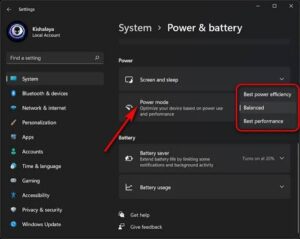
One of the biggest causes of a slow computer is the number of applications that automatically launch when Windows starts.
Programs such as messaging apps, cloud storage services, music players, and third-party utilities often run in the background even when they are not needed. These applications consume memory and processor resources, increasing boot times and reducing overall system responsiveness.
Users can improve startup performance by opening Task Manager, selecting the Startup Apps tab, and disabling programs that are not essential. Keeping only security software and critical applications enabled can significantly reduce startup time.
Free Up Storage Space
A nearly full storage drive can noticeably reduce Windows performance.
Microsoft recommends keeping sufficient free space on the system drive to allow Windows to manage updates, virtual memory, and temporary files efficiently.
Users can remove unnecessary files using the built-in Storage Sense feature, delete temporary files, uninstall unused applications, and move large photos or videos to external storage or cloud services.
Solid-state drives (SSDs) also perform best when they are not completely full.
Keep Windows Updated
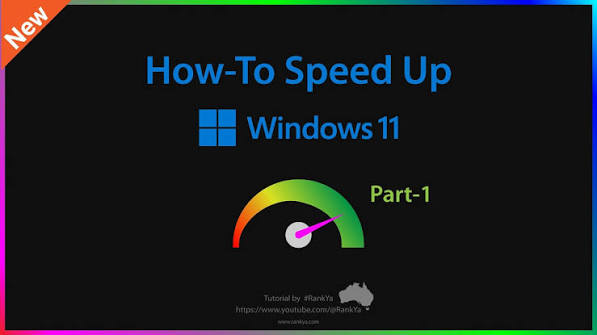
Installing the latest Windows updates helps improve system stability, security, and performance.
Microsoft regularly releases updates that fix bugs, optimize system components, and improve compatibility with newer hardware.
Users should periodically check Settings > Windows Update to ensure they are running the latest version of Windows 11.
Driver updates, particularly for graphics cards and storage controllers, can also improve overall system performance.
Restart Your Computer Regularly
Many users simply close the laptop lid instead of restarting their computer.
While Sleep mode is convenient, restarting Windows clears temporary memory, closes background processes, and installs pending updates.
Technology professionals recommend restarting your computer at least once every few days to maintain smooth performance.
Remove Unused Applications
Many computers accumulate software that is no longer needed.
Unused applications continue occupying storage space and may even run background services that consume system resources.
Removing unnecessary software through Settings > Apps > Installed Apps can free valuable storage and reduce background activity.
Users should also avoid installing multiple antivirus programs, as they can slow the system considerably.
Upgrade to an SSD
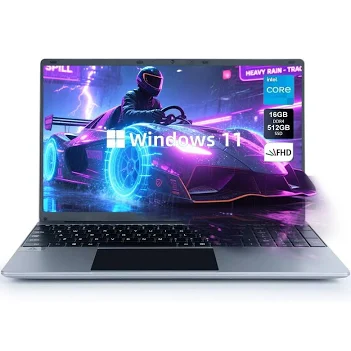
Hardware upgrades remain one of the most effective ways to improve Windows 11 performance.
For computers still using traditional hard disk drives (HDDs), replacing the drive with a solid-state drive can dramatically reduce boot times and application loading speeds.
Many older laptops become significantly faster after migrating Windows to an SSD.
Although this upgrade requires additional investment, it often delivers the greatest performance improvement.
Increase RAM if Possible
Random Access Memory (RAM) plays a critical role in multitasking.
Computers with only 4GB of RAM may struggle when running multiple browser tabs, office applications, or video conferencing software simultaneously.
Upgrading to 8GB or 16GB allows Windows 11 to handle more applications smoothly without excessive reliance on virtual memory.
Many business and student laptops support RAM upgrades, although some modern ultrabooks have memory permanently soldered to the motherboard.
Turn Off Visual Effects
Windows 11 includes attractive animations, transparency effects, and shadows that enhance the user experience but consume additional system resources.
Users with older computers can improve responsiveness by selecting Adjust for Best Performance under Windows’ advanced system settings.
Disabling unnecessary animations can make menus and windows open more quickly.
Scan for Malware
Malicious software remains a common cause of slow computer performance.
Viruses, spyware, and unwanted programs often consume processor resources, internet bandwidth, and memory without the user’s knowledge.
Running a full scan using Microsoft Defender or another trusted antivirus solution can identify and remove harmful software affecting system performance.
Regular security scans also help protect sensitive personal information.
Clean Temporary Files
Temporary files accumulate over time as applications create cached data during normal operation.
These files often remain on the computer long after they are no longer needed.
Windows Disk Cleanup and Storage Sense can automatically remove temporary files, recycle bin contents, and system cache files, freeing storage space and improving efficiency.
Manage Browser Extensions
Modern web browsers consume significant system resources, especially when numerous extensions are installed.
Unused browser add-ons can increase memory usage and slow browsing performance.
Users should periodically review installed extensions and remove those they no longer need.
Keeping fewer browser tabs open also reduces RAM consumption.
Adjust Power Settings
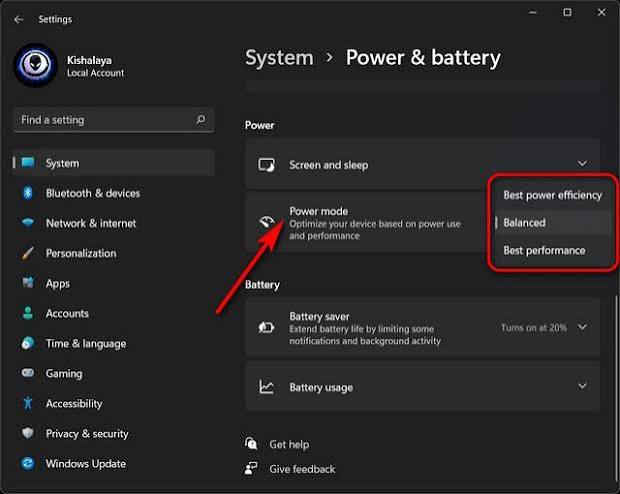
Laptop users often operate under power-saving modes that intentionally reduce processor performance to extend battery life.
Switching to Balanced or Best Performance mode while connected to power allows Windows to use more system resources for demanding tasks.
This setting can improve responsiveness during productivity work, content creation, and gaming.
Keep Drivers Updated
Hardware manufacturers regularly release updated drivers that improve compatibility and fix performance issues.
Graphics cards, Wi-Fi adapters, audio devices, and storage controllers all benefit from updated drivers.
Users should obtain drivers directly from their computer manufacturer or hardware vendor to ensure compatibility.
Reduce Background Processes
Many applications continue running after they are closed.
Cloud synchronization tools, messaging platforms, software updaters, and utilities may consume CPU resources continuously.
Monitoring background activity through Task Manager helps identify programs using excessive memory or processor power.
Closing unnecessary applications can immediately improve responsiveness.
Optimize Gaming Performance
Gamers can improve Windows 11 performance by enabling Game Mode, updating graphics drivers, and closing unnecessary background applications before launching games.
Reducing in-game graphics settings also helps older hardware achieve smoother frame rates.
Players using dedicated graphics cards should ensure games are configured to use the high-performance GPU instead of integrated graphics.
Check System Health
Performance problems may also indicate failing hardware.
Users experiencing persistent slowdowns should check storage health, monitor processor temperatures, and ensure cooling fans are functioning properly.
Dust accumulation inside laptops and desktops can cause overheating, forcing processors to reduce performance automatically to prevent damage.
Cleaning internal cooling systems periodically helps maintain consistent performance.
Consider a Hardware Upgrade
If a computer remains slow despite software optimization, upgrading key components may be the most practical solution.
Adding more RAM, replacing an HDD with an SSD, or purchasing a newer processor can significantly extend a computer’s lifespan.
For very old systems that no longer meet Windows 11 requirements, replacing the device may provide better long-term value than repeated upgrades.
Final Thoughts
Windows 11 is designed to deliver a modern and efficient computing experience, but like any operating system, its performance depends on regular maintenance and suitable hardware.
Experts agree that simple actions such as disabling unnecessary startup programs, cleaning storage, installing updates, and scanning for malware can restore much of a computer’s original speed. Users seeking even greater improvements should consider upgrading to a solid-state drive or increasing system memory.
With routine maintenance and thoughtful optimization, most Windows 11 computers can continue delivering reliable performance for work, study, entertainment, and everyday computing without requiring expensive replacements.

