


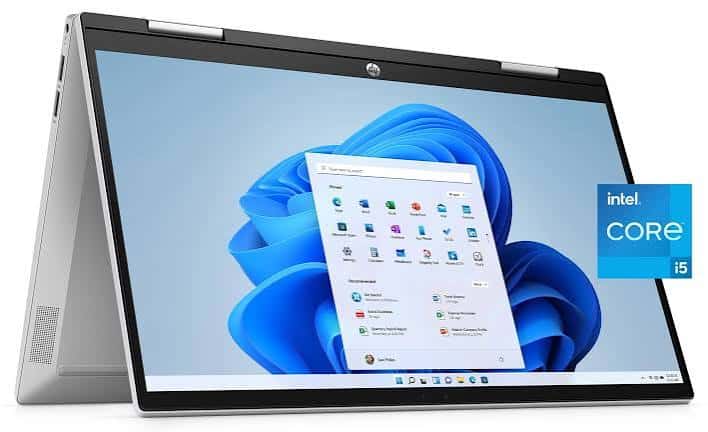
A few simple habits can help extend your laptop’s battery life, reduce battery wear, and keep your device running efficiently.
1. Lower Your Screen Brightness
The display is one of the biggest battery users.
- Reduce brightness when you don’t need maximum power.
- Turn on automatic brightness if your laptop supports it.
- Reduce screen timeout so the display turns off sooner when idle.
2. Use Battery Saver Mode
Most laptops include built-in power-saving settings.
- Windows: Enable Battery Saver or Energy Saver mode.
- macOS: Use Low Power Mode in Battery settings.
- Adjust settings to reduce background activity when running on battery.


3. Close Unused Apps and Browser Tabs
Programs running in the background consume power.
- Close apps you are not using.
- Reduce the number of browser tabs open.
- Check which apps are using the most battery in your system settings.
4. Turn Off Unused Connections
Disable features you don’t need:
- Bluetooth
- Wi-Fi (when offline)
- Location services
- External devices connected through USB
5. Keep Your Laptop Cool
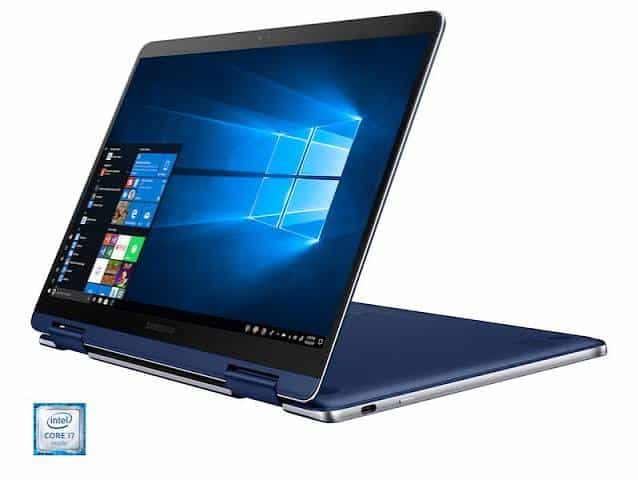
Heat can reduce battery performance and lifespan.
- Avoid using your laptop on soft surfaces like beds or pillows.
- Keep air vents clear.
- Clean dust from vents periodically.
- Use a cooling stand if your laptop gets hot during heavy use.
6. Manage Charging Habits
Modern laptops use lithium-ion batteries, which work best with good charging practices.
- Avoid regularly draining the battery to 0%.
- Avoid keeping it at 100% charge for long periods if your laptop stays plugged in constantly.
- If available, enable battery protection features that limit charging to around 80%.
7. Update Your Software
Updates can improve power efficiency.
- Keep your operating system updated.
- Update drivers and firmware when recommended.
- Use manufacturer battery management tools if available.
8. Reduce Power-Hungry Activities
Activities that drain battery quickly include:
- Gaming
- Video editing
- Running many demanding applications
- High-resolution video streaming
- Using maximum performance modes
Use performance settings only when needed.
9. Use Sleep and Hibernate Wisely
- Use Sleep for short breaks.
- Use Hibernate when leaving your laptop unused for a longer period.
- Shut down occasionally to refresh system performance.
10. Check Battery Health Regularly
Monitor your battery condition:
- Check battery health reports in your system settings.
- Replace an aging battery if it no longer holds enough charge.
- Avoid using damaged or swollen batteries.

Quick Battery-Saving Checklist
✅ Lower screen brightness
✅ Turn on power-saving mode
✅ Close unused apps
✅ Keep software updated
✅ Keep the laptop cool
✅ Avoid extreme charging habits
✅ Use the correct charger
Following these steps can help your laptop last longer between charges and maintain better battery health over time.

